> For the complete documentation index, see [llms.txt](https://help.divineshop.vn/llms.txt). Markdown versions of documentation pages are available by appending `.md` to page URLs; this page is available as [Markdown](https://help.divineshop.vn/huong-dan-khac/huong-dan-cai-dat-va-su-dung-chrome-remote-desktop-tren-macos.md).

# Hướng dẫn cài đặt và sử dụng Chrome Remote Desktop trên MacOS

{% hint style="info" %}
[Bước 1](#buoc-1-cai-dat-phan-mem) và [Bước 2](#buoc-2-cap-quyen-truy-cap-cho-phan-mem) chỉ cần thực hiện lần đầu khi cài đặt phần mềm. Sau này khi cần hỗ trợ bạn chỉ cần thực hiện theo [Bước 3](#buoc-3-lay-ma-truy-cap).
{% endhint %}

### Bước 1: Cài đặt phần mềm

Mở Chrome, và truy cập <https://remotedesktop.google.com/support>

Bấm vào biểu tượng tải xuống

<figure><img src="/files/fLxvFttZvonkClVT2ugj" alt=""><figcaption></figcaption></figure>

Mở file vừa tải về, click đúp chuột vào file **Chrome Remote Desktop Host.pkg** để cài đặt

<figure><img src="/files/Al4EqEyf1LBg9hU8njDV" alt=""><figcaption></figcaption></figure>

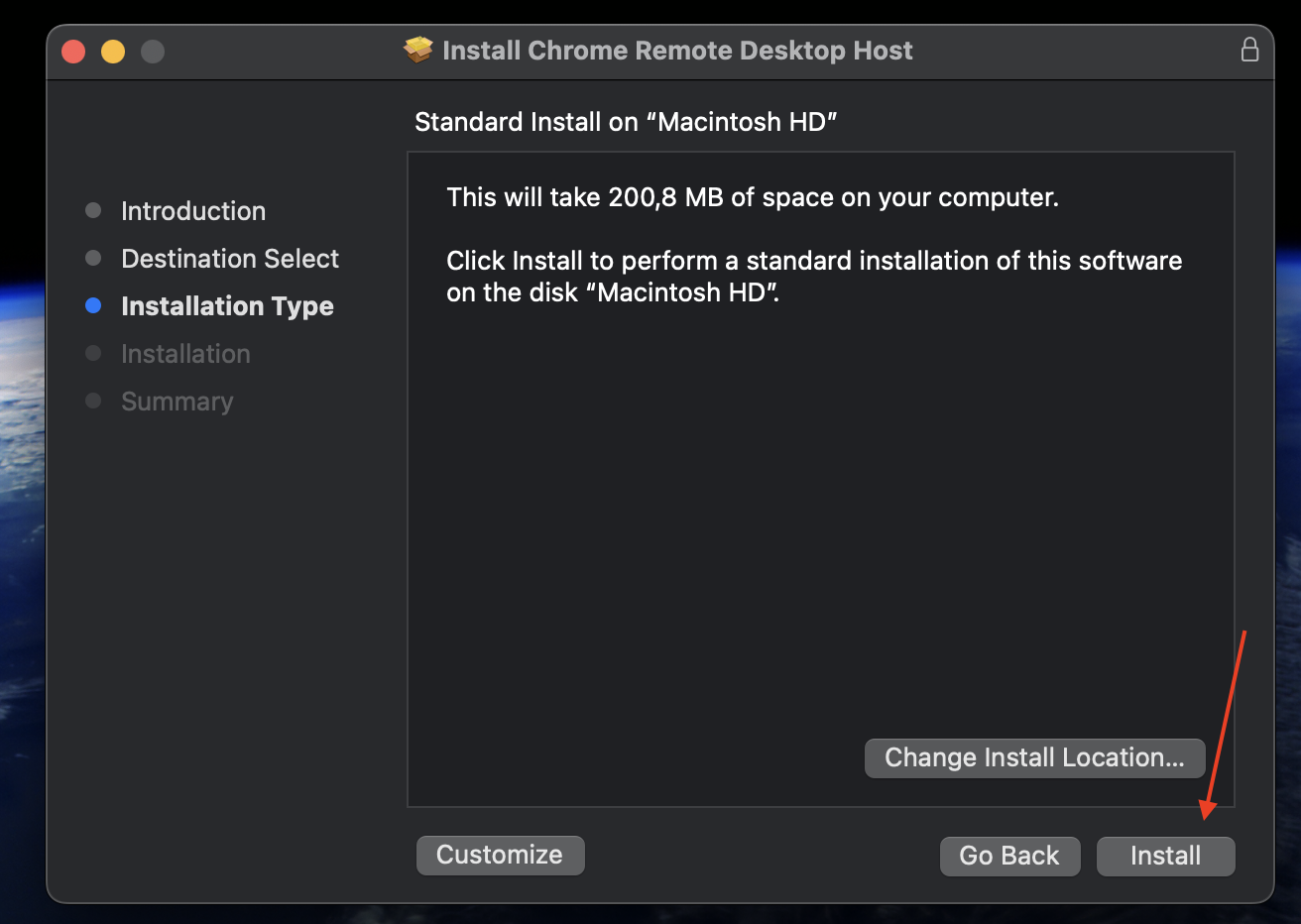
Tiến hành cài đặt theo các bước như hình

<figure><img src="/files/KkcCu8CFFYyO2YRDRl27" alt=""><figcaption></figcaption></figure>

<figure><img src="/files/EsrFgKGQhhuzRsuptUu4" alt=""><figcaption></figcaption></figure>

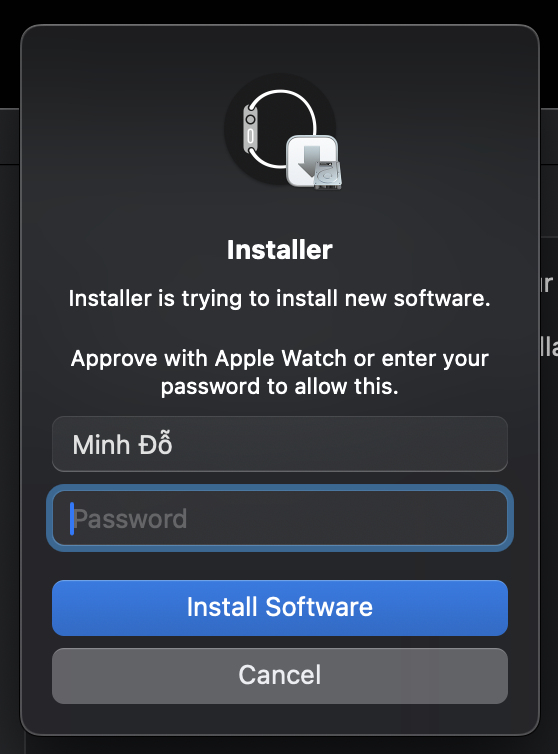
Nhập mật khẩu đăng nhập máy tính rồi ấn **Install Software** để cài đặt phần mềm

<figure><img src="/files/TsIAnAqmgofpdDds3EqK" alt=""><figcaption></figcaption></figure>

Bấm **Allow** khi thông báo này hiện lên

<figure><img src="/files/oukECbCDfJZFZLWJAhmc" alt=""><figcaption></figcaption></figure>

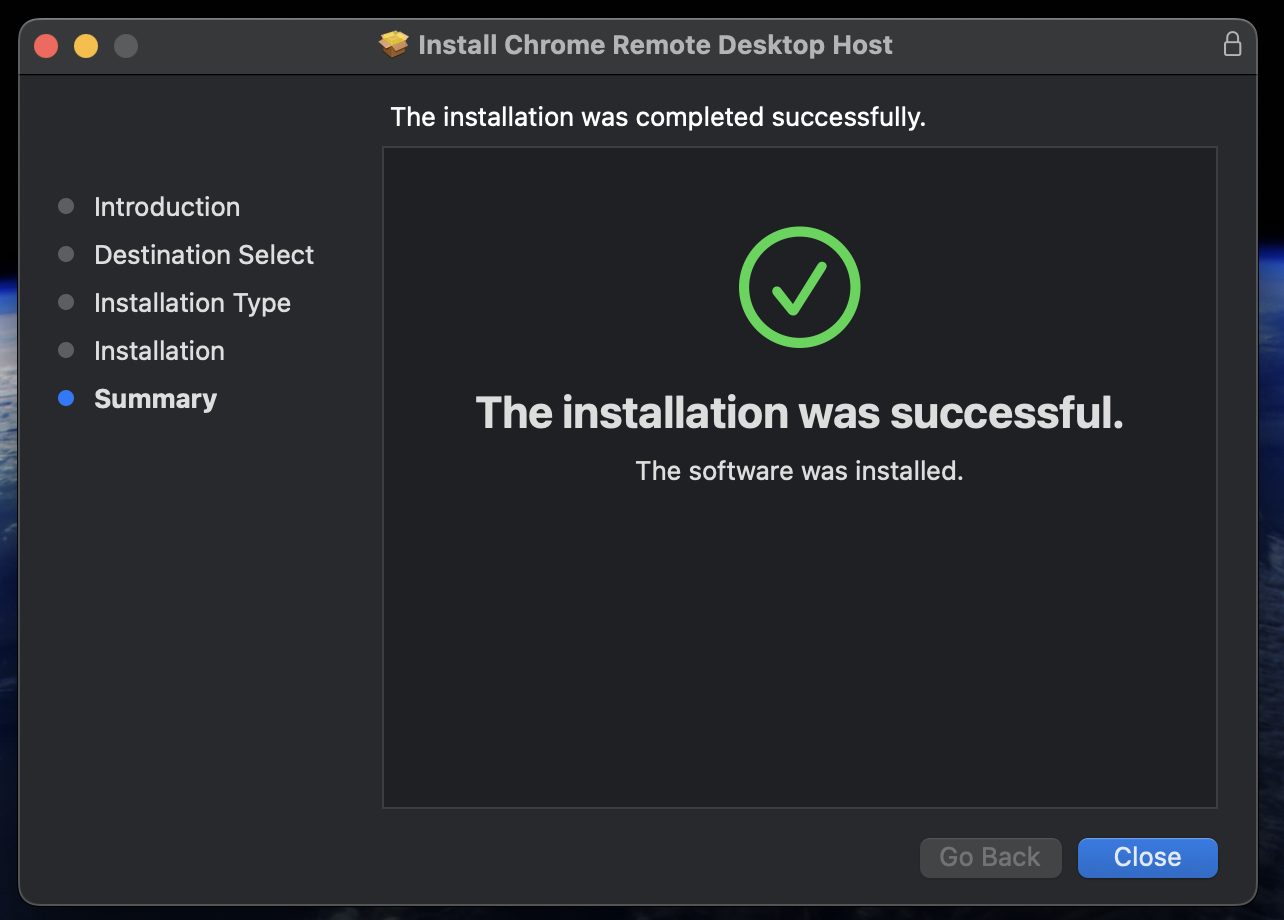
Như này đã hoàn tất cài đặt

<figure><img src="/files/asNP1rhliynjmlmA6cB2" alt=""><figcaption></figcaption></figure>

### Bước 2: Cấp quyền truy cập cho phần mềm

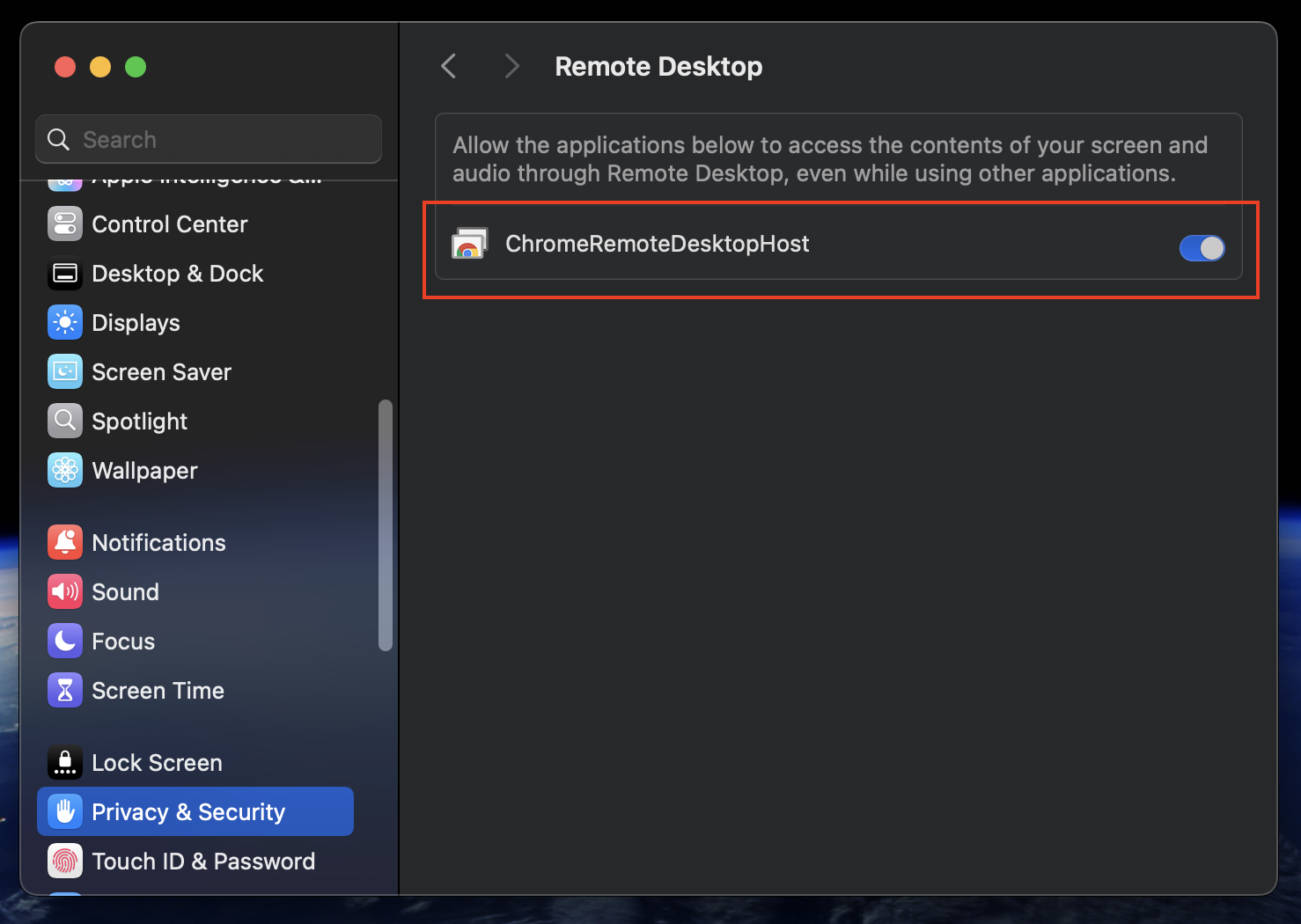
Mở **Setting** của Mac, chuyển đến mục **Privacy & Security**

Tại đây, cấp quyền cho phần mềm **ChromeRemoteDesktopHost** tại các mục con:

#### Accessibility

<figure><img src="/files/b4yoif8gbn5a3UYHNOOc" alt=""><figcaption></figcaption></figure>

#### Remote Desktop

<figure><img src="/files/SVGdNpRfsMM1s8lCWXbm" alt=""><figcaption></figcaption></figure>

#### Screen & System Audio Recording

<figure><img src="/files/yLwoG7kEZOKhafrOh3Zi" alt=""><figcaption></figcaption></figure>

### Bước 3: Lấy mã truy cập

Quay lại Chrome và truy cập <https://remotedesktop.google.com/support>

Bấm **Tạo mã**

<figure><img src="/files/YEhBFxiHusanIT8TSbun" alt=""><figcaption></figcaption></figure>

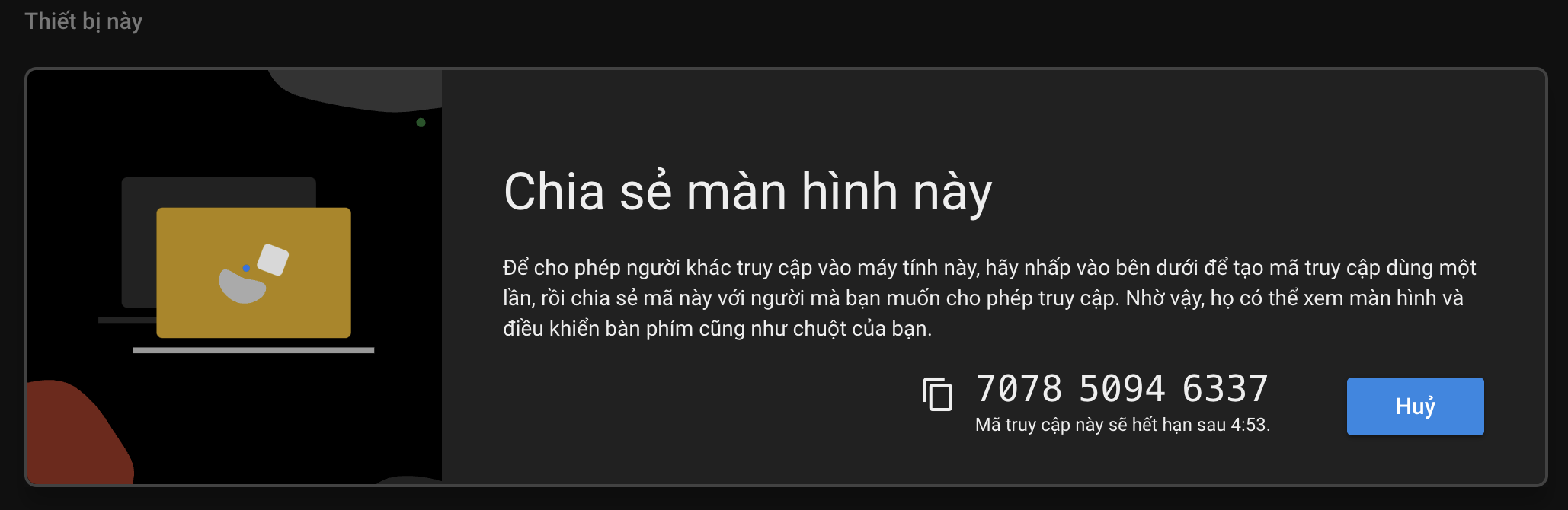
Sau chép mã mà phần mềm hiển thị, sau đó gửi cho CSKH để được hỗ trợ

<figure><img src="/files/t2WRJxZvhPQBrmtdldHK" alt=""><figcaption></figcaption></figure>

Khi kĩ thuật tiến hành remote để hỗ trợ bạn, sẽ có 1 số thông báo hiện thị như hình, hãy bấm **Share** và **Allow** để đồng ý truy cập

<figure><img src="/files/NKbkrRgU2rDq7HQLWh0D" alt=""><figcaption></figcaption></figure>

<figure><img src="/files/gh8KMeNolGsGvzjeMuMi" alt=""><figcaption></figcaption></figure>